Instagram Bio Superscripts, Small Fonts, and a Following List Worth Cleaning Up
By Adam.W · Published 2026.10.9 · Last reviewed 2026.10.9
About this guide. Written by Adam.W (Formatting & Unicode editor), who has spent the last few years documenting how Unicode text survives — or fails — across real platforms. The steps below were checked against Instagram's own Accounts Center export flow, and the character limits were verified for 2026. Where a claim cannot be proven, we say so.
Contents
- Why "Clean" Means Two Different Things on Instagram
- How Instagram Actually Handles Fancy Text
- Superscripts in an Instagram Bio: What Works, What Breaks
- Small Fonts and Tiny Text in Bios and Captions
- A Pre-Paste Checklist Before You Commit to a Bio
- The Other Half of a Clean Profile: Your Following List
- Get Your Instagram Data Export (Official Steps)
- Find the Accounts That Do Not Follow You Back
- Review, Do Not Bulk-Unfollow
- A 20-Minute Profile Refresh
- Frequently Asked Questions
- Final Thoughts
Most advice about “cleaning up Instagram” only ever covers one half of the problem.
Sometimes it is about how your profile looks — the bio, the captions, the little superscript labels people use to fake structure because Instagram has no real formatting.
Other times it is about the relationships you keep: the hundreds of accounts you follow, half of which you added years ago and never thought about again.
Those two things are more connected than they look. A profile that reads clean is usually one where someone also decided who belongs in their feed.
This guide covers both. First, how Unicode superscripts and small fonts actually behave inside Instagram — because they do not behave the same everywhere, and that matters. Then, a practical, privacy-respecting way to review your following list using data you already own.
Why “Clean” Means Two Different Things on Instagram
Think of a clean profile as having two layers, and they fail for different reasons.
The visual layer is everything people see at a glance: your name, your username, your bio, the first line of your captions. It gets messy when you paste decorative characters that render inconsistently, or when the bio is so dense that nothing stands out.
The relational layer is who you follow. It gets messy quietly — a follow-for-follow here, a curiosity follow there — until your feed is a museum of accounts you no longer care about.
You fix the first layer with formatting discipline. You fix the second layer with your own data. Let's take them one at a time.
How Instagram Actually Handles Fancy Text
Here is the single fact that explains almost every problem that follows: Instagram has no rich-text formatting.
You cannot bold a word, italicize a phrase, or add a real heading inside a bio or caption. So people reach for Unicode “look-alike” characters — superscripts like ᴴᵉˡˡᵒ, small caps and tiny text like ʜᴇʟʟᴏ — which are not formatting at all. They are simply different characters that happen to look a certain way.
That distinction has three consequences worth internalizing:
- Because it is a character and not a style, any platform that displays the character will show it — but any platform whose font lacks it will not.
- Because it is a character and not a style, search, screen readers, and accessibility tools do not treat it as the plain letter it resembles.
- Because there is no “undo,” a platform that strips or re-encodes the text can silently change what your line means.
If you want the longer version of why this happens, our explainer on what a superscript generator actually does covers the character-versus-style idea in more depth.
| Instagram field | How Unicode text behaves |
|---|---|
| Username | Technically accepts Unicode, but discouraged — it can break mentions, search, and login links. |
| Name field | Accepts Unicode and is searchable. Keep at least one plain word so people can still find you. |
| Bio | The most common place for superscripts and small fonts. Renders on most devices, but search only matches the plain characters. |
| Captions & comments | Renders like the bio, but copy-paste from other apps sometimes strips or mangles the characters. |
| Direct messages | Usually fine on modern phones, less reliable on desktop web. |
Superscripts in an Instagram Bio: What Works, What Breaks
A superscript is text that sits above the normal baseline. On paper it carries meaning — an exponent, a footnote marker, a unit like m². On Instagram it is mostly used decoratively, as a way to make a small label feel like a heading.
Superscript digits (⁰¹²³⁴⁵⁶⁷⁸⁹) and a handful of letters are the most widely supported. They render on the vast majority of phones and browsers because they are part of common fonts. If you need one safe decorative trick, this is it.
The trouble starts when you move beyond that core set. Many fonts include superscript digits but omit rarer superscript letters. The result is a line where some characters appear and others turn into empty boxes — the same character that looked fine in your notes app can break the moment it lands in a bio.
We broke this down in two companion pieces: why Unicode superscripts don't work everywhere and which platforms support them. If you only remember one rule, make it this: test before you commit, and keep the decorative characters out of the words you want to be found.
One more honest caveat, because it rarely gets mentioned: screen readers may announce a superscript differently than you expect — sometimes spelling it out, sometimes skipping it entirely. If your bio is the only place a key piece of information lives, put it in plain text too.
Small Fonts and Tiny Text in Bios and Captions
“Small font” is a bit of a misnomer. Nothing is being scaled down. A small font generator swaps your letters for Unicode characters from blocks like small caps and phonetic extensions, so Hello becomes ʜᴇʟʟᴏ.
Used sparingly, it is a genuinely useful way to separate sections of a bio — a quiet label above a list of links, for instance. A small font generator is the fastest way to build those lines without hunting for individual characters.
Used carelessly, it does two things you probably do not want. First, it makes text harder to read on small or low-density screens, which is where most people will actually see your profile. Second, it hurts searchability for the same reason superscripts do: the characters are not the letters they resemble.
A good rule of thumb is to keep small fonts to short decorative labels and leave anything functional — your name, your location, your call to action — in normal text.

The same bio, twice: decorative Unicode on the left, plain text on the right.
A Pre-Paste Checklist Before You Commit to a Bio
Formatting problems are cheap to catch and annoying to fix once your bio is live and indexed. Run this list every time you change it.
- Paste the text into a draft comment or a message to yourself first — not straight into your live bio.
- Check it on both mobile and desktop; the same characters can look different on each.
- Confirm your name is still searchable in plain text — fancy characters are not indexed the same way.
- Keep a plain-text version of every line so you can fall back instantly if something breaks.
- Do not stack two or three styles in one line; it becomes noise and it eats the 150-character budget fast.
- Remember every fancy character still counts as one character against the limit.
And keep the limits in mind while you draft — decorative characters do not get a discount:
| Instagram field | Limit |
|---|---|
| Username | 30 characters |
| Name field | 30 characters |
| Bio | 150 characters |
| Caption | 2,200 characters |
| Hashtags per post | 5 (since December 2025) |
When you are ready to build the characters themselves, a superscript generator lets you pick exactly which characters get raised instead of converting a whole line at once — which is usually what you want for a bio.
The Other Half of a Clean Profile: Your Following List
Now the part that has nothing to do with fonts.
Your following list accumulates the same way a browser accumulates tabs. A follow-for-follow exchange years ago. An account you followed for one giveaway. A brand you meant to keep up with and never did. Individually, none of them matter. Together, they decide what your feed actually looks like.
Reviewing that list is not about getting even with anyone. It is curation — the same instinct that makes you tidy a bio, applied to who you spend your attention on. It is particularly useful for three groups:
- Personal cleanup — find accounts you follow that do not follow you back, then decide which interests still earn a spot.
- Creator audits — separate real reciprocal relationships from accounts followed for research or inspiration.
- Business reviews — produce a documented list before making changes to a brand account.
The good news is that you do not need any special access to do this. Instagram will hand you the raw data, and the comparison is arithmetic.
Get Your Instagram Data Export (Official Steps)
Everything starts with an official export from Instagram. This is the same archive Instagram builds for data-portability requests, and it is the only trustworthy source for the relationship data.
- Open Instagram and go to Settings → Accounts Center (or accountscenter.instagram.com).
- Choose Your information and permissions → Download your information.
- Select Download or transfer information, then pick the account you want to export.
- Choose Some of your information and tick Followers and following.
- Pick the format: JSON is easiest to compare programmatically, HTML is easier to read by eye.
- Set the date range to All time so the snapshot is complete.
- Choose Download to device, then submit the request.
- Wait for the email, then download the ZIP and keep it compressed — export links expire.
Two practical notes. Instagram usually prepares the archive within a few hours, but it can take up to 48 hours or longer when the service is busy — do not re-request it and reset the clock. And the download link expires after a while, so save the ZIP to your computer rather than opening it straight from the email.
For the current menu wording, Instagram's own Help Center at help.instagram.com is the authoritative reference — menus move, and it is worth checking there if a step looks different on your device.
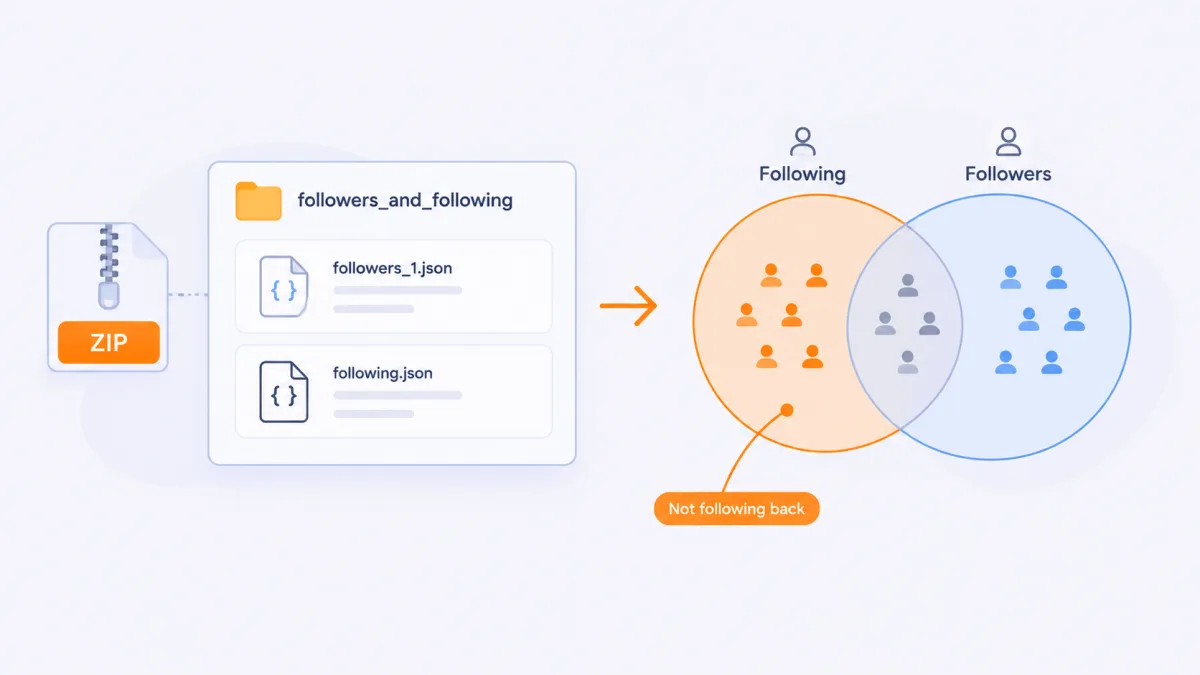
Inside the ZIP, the followers_and_following folder holds both lists you need.
Find the Accounts That Do Not Follow You Back
Open the ZIP and you will find a folder called followers_and_following. Two files in it do all the work:
- followers_1.json — the accounts that follow you.
- following.json — the accounts you follow.
A “non-follower” is simply a username that appears in the second list but not the first. That is the whole definition — no guessing about who viewed your profile, no theory about why someone unfollowed. It is a comparison of two files from the same snapshot.
You can do that comparison by hand for a few dozen accounts. Past that, it stops being reasonable: the JSON is not designed for human eyes, and a single missed line skews the result. This is where a dedicated tool earns its place.
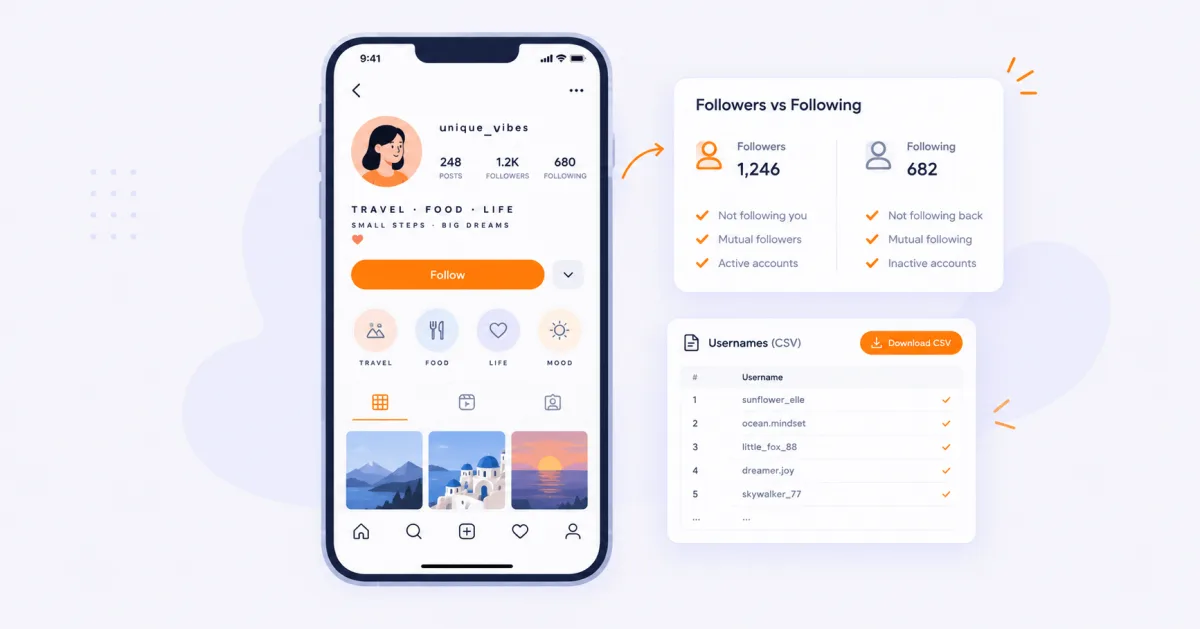
Instagram Cleaner is a browser-based Instagram non-followers checker built exactly for this job. You upload the export ZIP, it reads the followers and following files, and it shows you the accounts that do not follow you back. The part that matters for privacy: the ZIP is processed locally in your browser — it does not ask for your password and does not connect to your account.
The result is a review list, not an automatic unfollow command. You open profiles individually, keep the exceptions you care about, and export the rest as a CSV if you want to work through it slowly. If you want the step-by-step version of the whole flow, their guide on how to see who doesn't follow you back on Instagram covers it in detail.
Review, Do Not Bulk-Unfollow
Once you have the list, resist the urge to clear it in one pass. A few habits make the cleanup both safer and more useful.
- Open each profile before you decide — a username alone rarely tells you the whole story.
- Keep exceptions: family, close friends, collaborators, and services you genuinely use.
- Export the result as a CSV so you can work through it slowly instead of in one sitting.
- Space your unfollows out. Unfollowing dozens of accounts in a burst can trigger an action block.
- Re-export every few months if you want an accurate picture — a list is only true for the day it was made.
It is also worth being precise about what a tool can and cannot tell you. Instagram Cleaner shows a relationship difference; it does not tell you who viewed your profile or why someone left. If you are trying to judge whether an account that does follow you is genuine, that is a separate question with separate signals — their bot followers checker handles that audit without mixing it into your following review.
And if you are hesitant about uploading anything at all, that instinct is healthy. Read their explanation of why the tool is safe before you decide — a tool that processes your file locally has nothing to hide about how it works.
A 20-Minute Profile Refresh
If you want to act on all of this without turning it into a project, here is a compact version that covers both layers.
Minutes 1–10 — the visual layer. Read your bio out loud. If a line is only there for decoration, cut it. Rebuild any fancy labels with a small font generator or a superscript generator, keeping functional words in plain text. Paste the result into a draft first, check it on your phone, and only then update the live bio.
Minutes 11–20 — the relational layer. If you already have an export, run it through the Instagram Cleaner workspace and work through the non-followers list in small batches. If you do not have an export yet, request one now — it will be waiting for you the next time you want to do this.
Neither half takes long. What makes a profile feel maintained is simply doing both, occasionally.
Frequently Asked Questions
Do Unicode superscripts work in Instagram bios?
Usually yes. Instagram stores the characters as plain text and most modern phones render superscript digits and common letters without trouble. The catch is that the exact same characters can break on a different device if the active font is missing that glyph, so it is worth testing before you commit.
Why does my superscript turn into an empty box on Instagram?
A box (sometimes called tofu) means the platform recognized the character but the font being used does not contain a drawing for it. It is a font-coverage problem, not a problem with your text. Switching to more common superscript characters — digits and a few letters — usually fixes it.
Does fancy text hurt my Instagram reach or search?
Fancy characters are not the same characters as their plain counterparts, so keyword search generally will not match them. Use them for decoration, not for the words you want people to find. Keep the important parts of your name and bio in ordinary letters.
Can a tool see who does not follow me back on Instagram?
Only from your own data export. Nothing can reliably show this from inside the app, and anything that asks for your password to do it is a red flag. A tool like Instagram Cleaner reads the followers and following files from your export and compares them — no login required.
Is it safe to upload my Instagram export to a browser tool?
It can be, provided the file is processed locally in your browser rather than uploaded to a server. Instagram Cleaner opens the ZIP on your own device, does not request your password, and does not connect to your account. Read their safety explanation before you upload anything, anywhere.
Does Instagram notify people when I unfollow them?
Instagram does not send a notification for an unfollow. The other person may notice if they check, but there is no alert. That is why following-list reviews are usually done quietly and in small batches.
Final Thoughts
A clean Instagram profile is not one thing. It is a bio that renders the same way everywhere, and a following list you actually chose.
The formatting half is about understanding that Unicode superscripts and small fonts are characters, not styles — which means they are wonderful for decoration and unreliable for anything you need to be found or read aloud.
The relationship half is about using data you already own. Request your export, compare the two lists, and let a tool do the tedious part while you keep the decisions. Instagram Cleaner is the one we used for the workflow above, precisely because it stays local and hands the judgment back to you.
Do both, occasionally, and neither half ever gets out of hand.
Transparency note: this article references Instagram Cleaner as a third-party tool. We tested the export-and-compare workflow described here before publishing. Instagram's menus and limits change over time, so verify current details against Instagram's own Help Center.